

Unit
The Units section allows you to view information about the units you own in your building. To view your unit information:
- Click on the Units icon in the left navigation menu
- If you own multiple units, select the unit you want to view from the list on the left
Unit Details
The unit page is organised in tabs. Tabs that hold nothing for your unit are hidden.
Charges
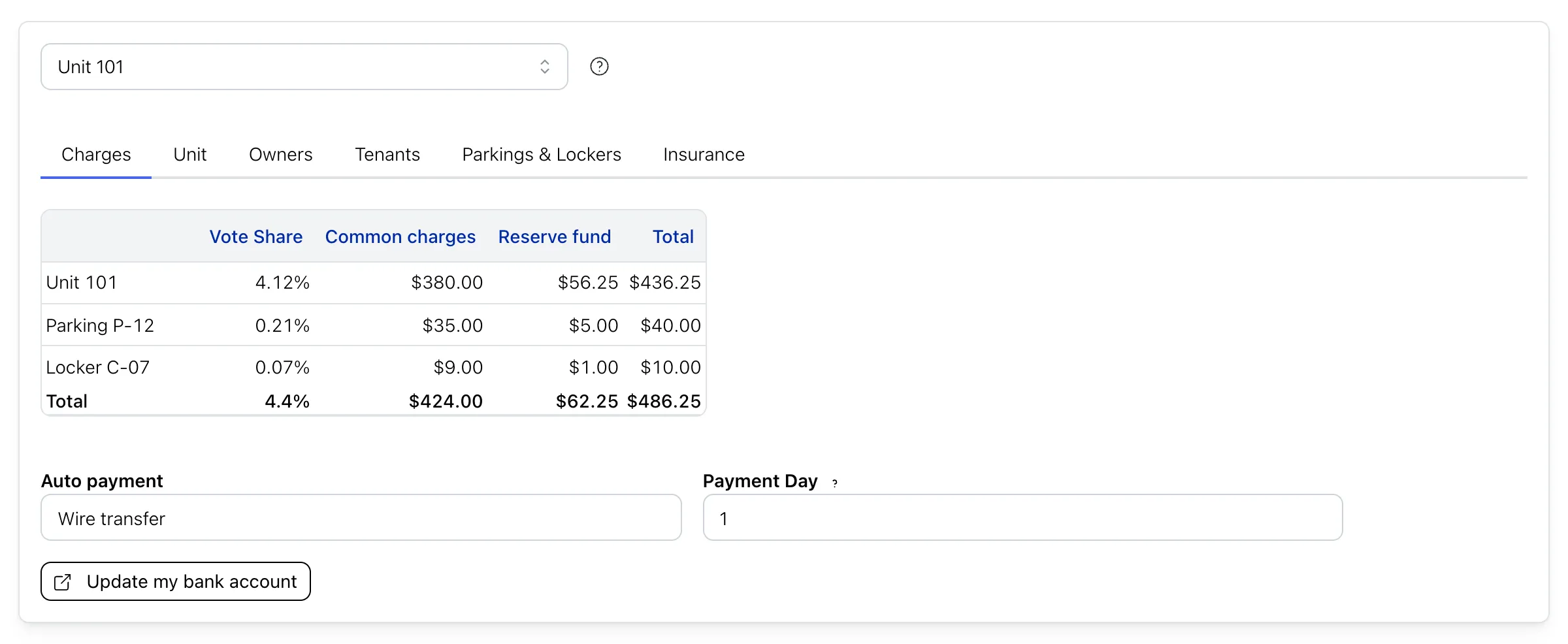
The first tab gathers everything billed monthly to your unit on a single page: the contributions of the unit itself, the fees of each of your parking spaces and lockers, the vote share of each of these items, the total of all these amounts and the total vote share of your unit. Below the table, the Payment section shows how these charges are collected:
| Auto payment | How your charges are collected automatically: Off, Wire transfer, TOMSO (previously Otonom) or EFT bank transfer. |
| Payment day | Day of the month on which automatic payments are debited, for contributions billed on the 1st. Contributions billed on any other day are always debited on that billing day. Only shown when automatic payment is on. |
| Bank account | The bank account the charges are drawn from. |
Unit
| Number | Unit Number |
| Accounting ID | The accounting ID is for internal reference |
| Floor | Floor of the unit |
| Comments | Optional comments |
Owners
This tab lists the co-owners of your unit as well as their email, and below them the Proxies designated to vote on their behalf.
Tenants
If your unit is not occupied by the owner, this tab lists the tenants, along with the lease and the tenants’ rental insurance.
Parkings & Lockers
This tab lists the parking spaces and storage lockers assigned to your unit. Their vote share and their monthly fees are shown in the Charges tab.
Recurring Invoices
The invoices billed to your unit on a recurring schedule, when your building uses them.
Documents
Documents your building manager attached to your unit specifically. Documents shared with all co-owners live in the Documents section instead.
Insurance & Water Heater
This tab holds your insurance information and, below it, your water heater information. It is always shown for the units you own, even when no insurance or water heater is on file yet: that is where you enter them for the first time, with the buttons described in Your insurance, water heater. Make sure the following insurance information is up-to-date:
| Provider | Your insurance company name |
| Policy # | Your insurance policy number |
| End Date | Your insurance expiration date |
| Liability Coverage Amount | The liability coverage amount |
| Certificate | Download or view your insurance certificate |
And the following water heater information:
| Installation Date | Date the water heater was installed |
| End of Warranty | Water heater warranty end date |
| Rented | When checked, the water heater is rented |
| Label | Download or view the water heater label |
Updating Unit Information
Most of a unit’s information — its number, floor, vote share, owners, tenants, parkings and lockers — is maintained by your building manager and cannot be changed by co-owners.
However, you can update your insurance information, water heater information, or personal information.
Your insurance, water heater
Whatever settings apply to your building, these are updated from a dedicated page. Open the Insurance & Water Heater tab of your unit and click Update my insurance information or Update my water heater information. These buttons are there even when nothing is on file yet, so you can register your first insurance from them.
The reminder emails you receive when your insurance or water heater is missing or about to expire link to the same page, which you can open without logging in.
- Enter the new information: insurance provider, policy number, expiry date and civil responsibility amount; or installation date and end of warranty.
- Attach the supporting document — your insurance certificate, or your water heater invoice or warranty. The document is required.
- Optionally, use Why are you sending this update? to add a note for your building manager.
- Click Submit.
Your building may have an automatic check enabled. The document you attach is then compared with the information you entered, and when everything matches your unit is updated right away. Otherwise your building manager reviews your submission before it takes effect.
Your lease
Lease documents are submitted from the Tenants tab with Submit my lease documents.
Your bank account and licence plate
When your building is set to Free changes by co-owners, two things are yours to edit directly on the unit page: the bank account your contributions are drawn from, and the licence plate recorded on your parking space. Click Edit, make your change, then click Save. As you type the transit and institution numbers of your account, the app shows the name of the bank they belong to. Check that it is your bank.
When your building is set to Changes approved by the manager — the default — contact your building manager instead.
Anything else
For every other field, contact your building manager, or open a request from the Requests section.