

Finances
Your building manager controls what financial information you can access. Depending on your building’s settings, you may:
- View transactions related to your unit
- Download your account statement
- See your current balance
Viewing Your Unit’s Transactions
If financial access is enabled, you can view transactions for your unit:
- Click on Units in the left navigation menu.
- Select your unit from the list.
- Go to the Transactions sub-menu.
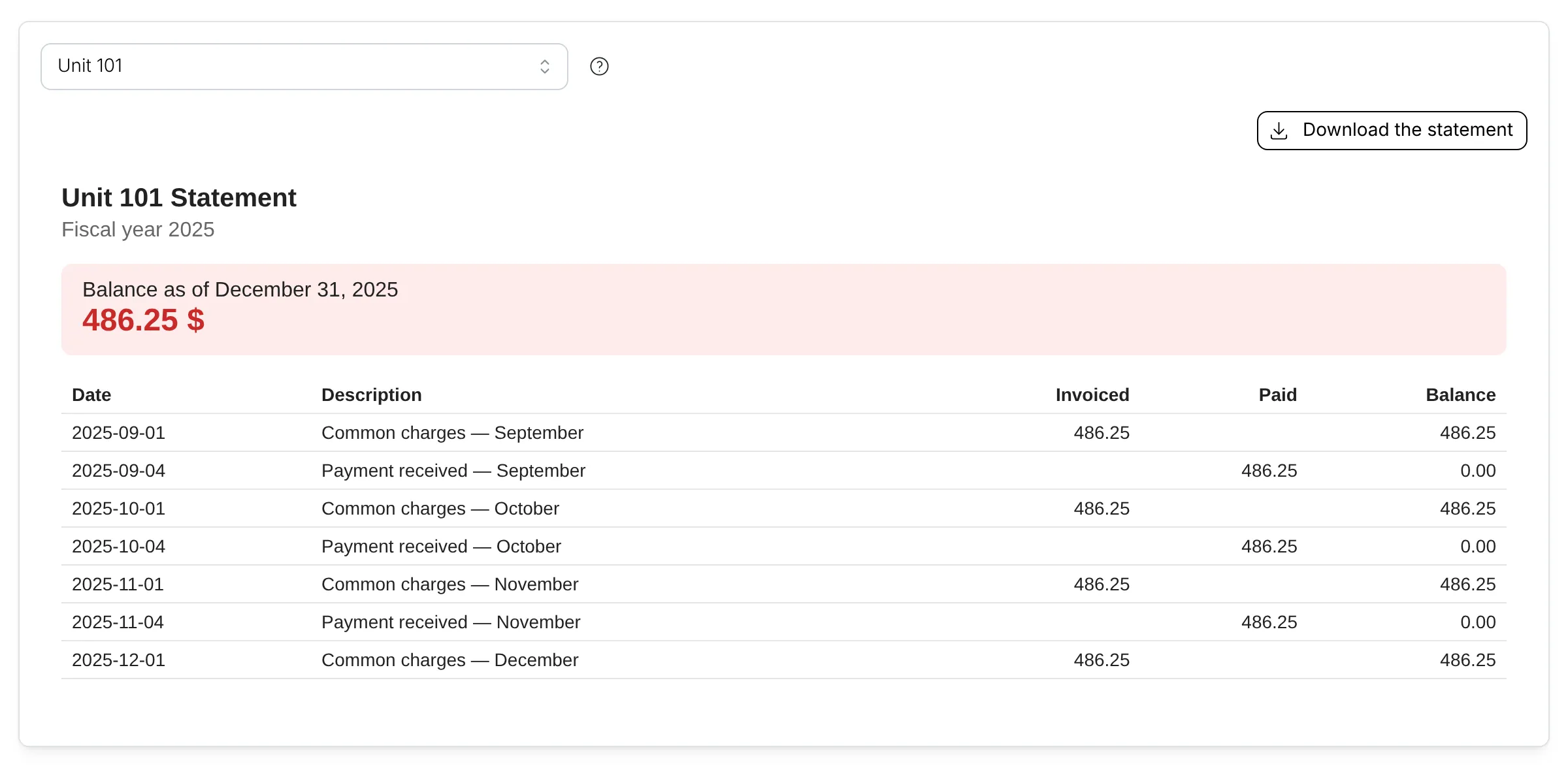
Statement
Your unit’s transactions appear as an account statement. It is the same document as the PDF statement.
The statement shows:
| Owners and Proxies | The owners of the unit, and the proxies if there are any |
| Balance | Your balance on the statement date, with a graph of how it changed |
| Opening Balance, Invoiced and Paid | The balance at the start of the fiscal year, the total invoiced to your unit’s account and the total you paid |
| Transactions | One line per transaction, newest first. Each line shows the date, the description entered by your building manager, the amount invoiced, the amount paid and the balance after it. |
Downloading Your Statement
You can download your statement as a PDF:
- Navigate to your unit’s transaction page.
- Click the Download the statement button.
Your statement includes:
- All transactions for a specific period
- Your current balance
- Payment history
Setting Up Automatic Payments
Some buildings offer automatic payment options. Contact your building manager to learn if this option is available and how to set it up.