

Requests
Requests allow you to communicate issues, questions, or requests for service to your building manager. This is the formal way to report problems or ask for assistance. You might submit a request for:
- Maintenance issues in common areas
- Repairs needed in your unit
- Questions about building services
- Requests for information
- Changes to your unit information
- Access requests
- Any other matters requiring administration attention
Viewing Your Requests
To see your requests:
- Click on Requests in the left navigation menu.
- View the list of requests you’ve submitted.
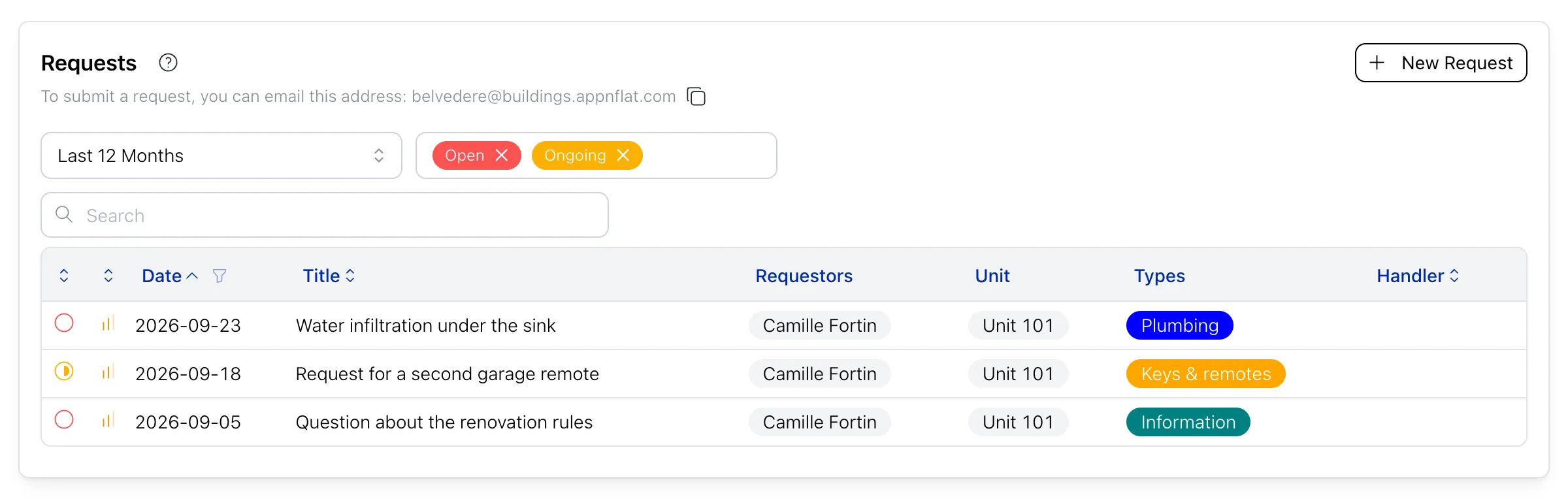
You’ll see:
- Requests you’ve created
- The status of each request
- Requests related to your unit(s)
Submitting a New Request
To create a new request:
- Click on New Request. The form opens on How can we help?
- Fill in the request details.
- Click Send request.
Parameters
| What’s it about? | A brief, clear description of your request. Example: “Leaking pipe in bathroom” or “Question about parking rules”. |
| Details (optional) | Anything that helps us understand your request, such as:
|
| Types | Select the type of request (if your building uses types). This helps route your request to the right person. As you describe your request, types are suggested below the field — tap one to add it. Your building may make this field mandatory. |
| Your unit | The unit the request relates to. It is pre-filled with yours; you can only change it if you have several units. |
| Attachments | Add photos or documents that help explain your request — up to 20 files. Click Add an attachment to attach them. |
Tracking Request Status
Open your request to follow it. A progress timeline shows where it stands:
- Received: we got your request
- In progress: the manager is looking into it
- Resolved: this request has been resolved
Below it, the conversation holds every email exchanged with the building, and a reply box lets you answer without leaving the app. Your reply reaches the manager as an email, exactly like a manager’s reply reaches you.
Urgent Issues
For urgent or emergency issues (important water leak, security issues, etc.), you should use the emergency contact number of your building. For life-threatening emergencies, always call emergency services first.
Following Up on Requests
If you haven’t received a response to your request within a reasonable time, check the request status in the platform. You can also reply in the request’s conversation to ask for an update, or contact your building manager directly if urgent.
Request History
In the Requests section, you can view all your past requests. Add Closed to the Status filter to see the finished ones.
Privacy
Your requests are visible to your building’s managers and staff who need to address them. They are not visible to other residents.