

Reservations
The Services / Reservations page lets you book what your building makes available. It can be a reception room, a guest suite, a visitor parking or a locker. Depending on the space, you book it by the hour, by the day, or rent it by the month.
Accessing reservations
Click the Services icon in the left navigation menu, then click Reservations.
Viewing the calendar
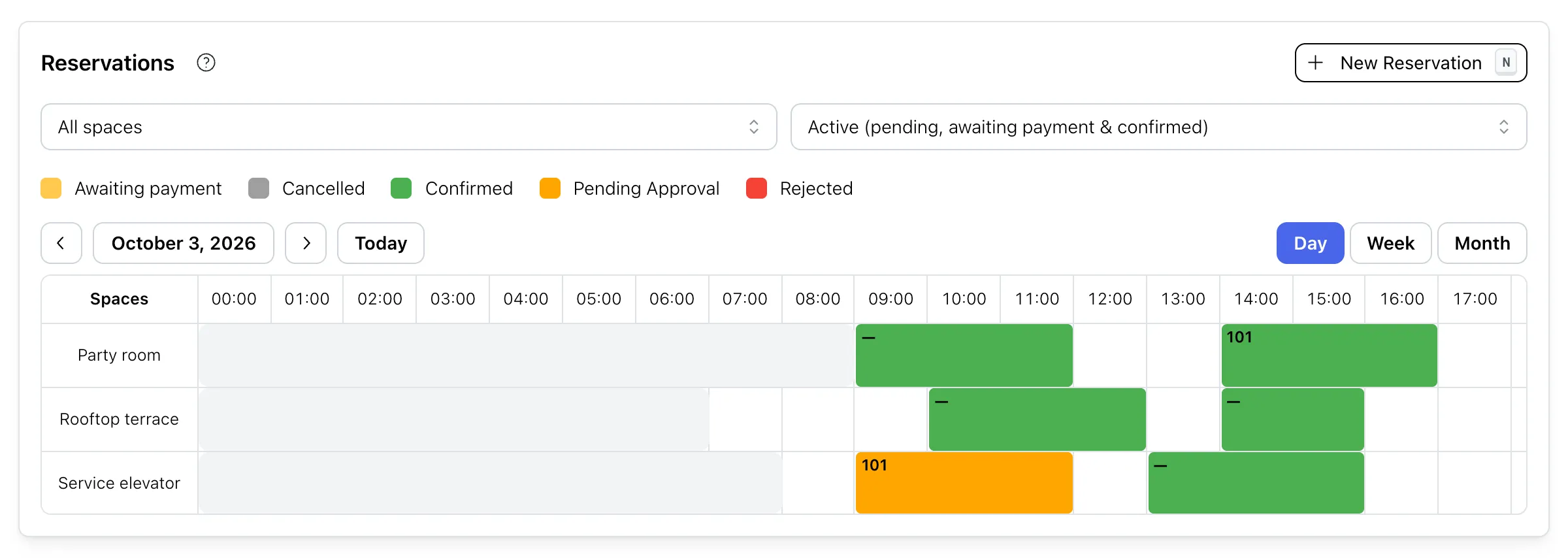
The booking calendar displays all available spaces and their reservations:
- Each row represents a bookable space. A space with several spots, such as a garage, shows how many of them are booked.
- Switch between the Day, Week and Month views. Move with Previous, Next and Today.
- Your reservations appear in color, with your unit number.
- The other units’ reservations appear as taken slots.
Make a reservation
- Click the New Reservation button, or click directly on an available slot in the calendar.
- Complete the information.
- Check the Duration and the Estimated Cost shown below the form.
- Click Save.
Parameters
| Space | The space you wish to reserve. Its description, if any, appears below it. |
| Unit | Your unit. It is filled in automatically if you only have one unit. |
| Parking, Locker or Spot | For a space with several spots. If the building lets you choose, only the free spots are listed. The one you had last time is suggested. Otherwise, a free spot is given to you automatically. |
License plate, Vehicle brand, Vehicle model, Vehicle color | For a parking only. Enter the vehicle that will use the spot, so the building can recognize it. |
| Booking mode | You may be able to choose the booking method if the space offers several: By the hour, By the day or By the month. |
| Date, Start Time, End Time | If the reservation is by the hour, specify the day and the times of your reservation. |
| Start Date, Number of Days | If the reservation is by the day, specify the first day and the number of consecutive days. |
| Start Date, Last month (optional) | If the reservation is by the month, specify when the rental starts and, if you wish, its last month. Leave the last month empty to keep the spot until you or the building stops the rental. |
The building sets the rules of each space. The form shows the time limits that apply. A space may also limit how many spots your unit can hold, or how often it can be booked.
If the space has a price, its Estimated Cost of the booking appears before you confirm. Otherwise, it shows as Free.
Paying
How you pay depends on the space.
Billed to your unit. On most spaces, the price is added to your unit’s account when the reservation is confirmed. You pay it with your other fees.
Paid online. Some spaces must be paid online. When you save, you are taken to a secure payment page. Your slot is held while you pay. The reservation is confirmed once the payment goes through.
Depending on your building, you can pay by card, Apple Pay, Google Pay or pre-authorized debit from a Canadian bank account. The money goes directly to your building. Neither the building nor AppNFlat sees your card or bank details.
| Space without approval | You are charged when you book. A pre-authorized debit takes a few business days. Your reservation is held for up to eight days, then confirmed by email once the money arrives. If your bank refuses the debit, the reservation is cancelled. |
| Space requiring approval | You pay by card. Your card is authorized but not charged. You see a pending charge on your statement. The amount is taken if the management approves the reservation. It is released if the management rejects it. |
| Booking made by the management | When the management books a space for your unit, no card is taken. You receive an email with a link to pay within 48 hours. Any member of the unit can pay. |
A reservation waiting for its payment shows Payment required. If you left the payment page without paying, open the reservation and click Pay now before the deadline it shows. After that, the reservation is cancelled and the slot is released.
Once paid, the confirmation email includes an invoice from the building. The payment processor, Stripe, sends its own receipt.
Monthly rentals
A reservation By the month is a rental. It renews every month until you or the building stops it, or until the Last month you chose.
- Approval. On a space that requires approval, only the first month waits for the management’s approval. The following months renew on their own.
- Billed to your unit. Each month is charged to your unit’s account when it begins.
- Paid online. You pay the first month online and agree to monthly payments. The card or bank account you used is saved. It is charged automatically at the start of each following month.
- Failed payment. If a monthly payment fails, you receive an email with a link to pay within 48 hours.
Your rentals are listed under Auto-renewing rentals, below the calendar. Each one shows its state: Active, Stopping or Paused.
Paused rentals
A rental is paused when:
- a month is still unpaid at its deadline, or
- its spot is no longer available, for example if the building stops renting it out.
The months not yet started are cancelled and you receive an email. A paused rental cannot be resumed. To keep the spot, book it again.
Turn a reservation into a rental
A confirmed reservation that has not ended can continue as a rental. Open it and click Keep renewing this, then Start the rental. The reservation keeps its own dates and its own payment. The rental picks up where it ends.
On a space that requires approval, ask the management to do it.
Stop a rental
- In Auto-renewing rentals, click the stop icon of the rental.
- Choose the date in Stop after, and optionally a reason.
- Click Stop the rental.
The month containing that date is kept to its end. The following months are cancelled. Nothing already paid is refunded. Once set, a stop date can only be brought forward.
Viewing your reservations
The filters at the top of the page show only one space, or only certain statuses. By default, cancelled and rejected reservations are hidden.
Click on one of your reservations to see the details:
- The space, and the parking, locker or spot you hold
- The start and end
- The status
- The vehicle, for a parking
- The reason for a cancellation or a rejection
- The cost, if any, and the state of an online payment
- The comments
To ask the management a question about a reservation, click Add Comment. The people who manage reservations are notified.
Reservation Status
| Pending Approval | The space requires approval. Your reservation is waiting for the management’s decision. |
| Awaiting payment | Your reservation is held until you pay it online, or until its payment deadline passes. |
| Confirmed | Your reservation was approved or confirmed straight away. It is paid if it had to be. |
| Cancelled | The reservation was cancelled by you or the management, or was not paid in time. |
| Rejected | The management did not approve your reservation. |
Change the vehicle of a parking reservation
The plate may have a typo, or a different car may come. Do not cancel the reservation, as someone else could then book the spot. Correct the vehicle instead:
- Click on the reservation in the calendar.
- Click Edit vehicle.
- Correct the plate, brand, model or colour.
- Click Save.
On a monthly rental, the change applies to that month only. Nothing else about a reservation can be changed. To change space, unit or time, cancel and book again.
Cancel a reservation
- Click on the reservation in the calendar.
- Click Cancel reservation.
- For a month of a rental, choose what to cancel (see below).
- Optionally, enter a reason, then confirm.
The dialog tells you what happens to the money before you confirm.
Before the reservation starts, everything goes back:
- Paid online: the full amount is refunded to the card or bank account you used. You receive a credit note by email.
- Billed to your unit: the charge is cancelled. If you already paid it, the amount stays as a credit on your unit’s account.
- A card authorization or a payment in progress is released. If the payment still goes through, it is refunded.
Once the reservation has started, you can no longer cancel it yourself. Ask the building’s management. They decide how much is refunded.
For a month of a rental, choose first:
| This period only | Only this month is cancelled. The rental continues with the following months. |
| This period and the following ones | Before the month starts. This month and every following one are cancelled. The rental ends. |
| End the rental after this period | Once the month has started. You keep the current month. The following months are cancelled. |
Emails you receive
You receive an email when your reservation is:
- confirmed, with the invoice when it was paid online,
- rejected,
- waiting for its payment,
- being paid by pre-authorized debit,
- cancelled because your bank refused the debit,
- refunded, with the credit note.
You also receive one when a rental is paused or stopped.